

Google Ads automated rules and Meta automated rules: how to set spend and CPA alerts
Both ad platforms can warn you when spend or cost per acquisition crosses a line, without changing anything. The steps for each, a side-by-side table, how late an alert can arrive, and what scripts add.
TL;DR
- Google Ads automated rules can email you when a number crosses a line, without changing anything: pick the rule type Send email, add a condition such as Cost above an amount, and set when it runs. Meta Ads Manager does the same with the action Send notification only.
- Neither alert is instant. Google says a rule runs within 2 hours of its scheduled time. Meta says rules are usually checked every 30 to 60 minutes. The campaign keeps spending in the gap.
- Meta allows 250 rules per ad account. It refuses a cost-based rule that notifies, or switches ads on or off, for ad sets inside a campaign that uses campaign budget optimisation. Put that rule on the campaign.
- For what a rule cannot express, Google Ads scripts run JavaScript as often as hourly, and Meta's Ad Rules Engine offers trigger-based rules through its API.
- overads checks Meta campaigns and ad sets every 15 minutes against synced figures and tells the team. It does not watch Google campaigns that way, and it is not quicker than a platform's own rule.
What Google Ads automated rules can do for an alert
Google Ads automated rules are settings in a Google Ads account that make a change, or send an email, when conditions you choose are met. Google's setup page says rules can change ad status, budgets and bids, and can also trigger automated emails when specific conditions occur. The email is the part that works as an alert.
The same page names the fields of a Google Ads rule: what it applies to, its conditions, its action, its frequency and its email results. Google's definition of automated rules puts the list under Tools, then Bulk actions, then Rules.
Two kinds of email come out of a rule, and they are easy to confuse.
- The Send email rule type. The rule exists only to email you when its conditions are met. Nothing in the account changes.
- Email results on any rule. Google's page on managing rules says you can be emailed after each run, or only when a run made changes or hit errors. This reports on a rule that acts, such as one that pauses campaigns.
Google also suggests a safety habit for rules that do act. Its tips page recommends a minimum and a maximum for bids and budgets, a preview before saving, and a first run set to one time before a recurring schedule.
How to set a spend alert with a Google Ads automated rule
A Google Ads spend alert is a rule of the type Send email with a Cost condition. The steps below are Google's own example from its page of common uses: a campaign with a daily budget of $100, and an email at noon if it has already spent more than $50 that day.
- Click Campaigns, then the name of the campaign to watch.
- Click the 3-dot icon and select Create an automated rule.
- Under Type of rule, select Send email.
- Under Apply to ad groups, choose All enabled ad groups or select specific ones.
- Under Condition, add Cost and set it to greater than $50.
- Set the frequency to Daily at 12:00 PM, using data from the Same day. Name the rule and save it.
The same page gives two variations worth knowing.
- A monthly line. Google describes a daily rule that reads data from the Same month and pauses any campaign that has spent, in its example, $200 so far that month. The same condition on a Send email rule gives a monthly spend alert.
- A check during the day. Google's example of a daily click limit uses several daily rules, each set to a different hour: about 6:00 AM, 12:00 PM and 6:00 PM. Each rule is one check.
That second point matters for alerts. A single daily rule at noon sees only what was spent by the time it ran. A campaign that crosses the line in the afternoon is not reported until a later rule runs. The help pages read for this post show the frequencies Once, Daily and Weekly in their examples and do not list every option, so check the Frequency menu in your own account for a shorter interval.
For a cost per acquisition alert, Google's examples use the condition Cost / conv. together with a minimum number of conversions. Its tips page explains why: a conversion can arrive many days after the click, so a rule based on conversions needs a longer data range than one based on clicks or cost.
What Meta automated rules can do for an alert
Meta automated rules check campaigns, ad sets and ads in Ads Manager and then change them or notify you. Meta's page about automated rules in Meta Ads Manager says a rule has three choices: the criteria that trigger it, the action it takes, and the campaign, ad set or ad it applies to. Rules apply at the ad account level, so they work whoever on the team made the ads.
Meta lists six actions on its actions page: turn off, turn on, send notification only, adjust budget, adjust manual bid, and scale budget or bid. Send notification only is the alert. It notifies you or other people on the ad account and changes nothing.
Meta publishes a worked example of a spend alert on its page on lifetime budget notifications. The steps are:
- Go to Automated rules and select Create rule.
- Name the rule and choose the ad sets it applies to.
- In the Action menu, choose Send notification only.
- Under Conditions, choose Lifetime ratio spent, then is greater than, and enter 0.5. Select Add.
- Select Create.
Meta says the notification then arrives by email and as a notification in Ads Manager once half the lifetime budget is spent. For cost alerts, Meta's list of available conditions includes cost per result, cost per purchase, cost per lead and cost per 1,000 impressions, each with a time range in days.
Three Meta constraints shape how an alert has to be built.
- All conditions must be met. Meta's page about conditions says a campaign, ad set or ad must meet every condition on a rule to trigger it. An alert for spend or cost per result, where either one should fire, is two rules.
- Cost conditions and campaign budgets do not mix at the ad set level. Meta's page on cost-related conditions says you cannot create a rule with a cost-related condition that turns ads or ad sets on or off, or sends a notification, when campaign budget optimisation is in use. Campaign budget optimisation is the term that page uses. Meta's suggested fix is to create the rule for the campaign, or for ad sets that do not use it.
- There are fixed limits. Meta's limits page allows up to 250 rules on one ad account, counting inactive ones, one of each condition per rule, and one level per rule. Rules cannot run on ads about social issues, elections or politics, and they cannot pause reservation campaigns.
Google Ads automated rules and Meta automated rules, side by side
Google Ads automated rules and Meta automated rules both send an alert without acting, and they differ in how often they look and in what they refuse. The table covers the alert job only, from the help pages listed under Sources.
| Google Ads automated rules | Meta automated rules | |
|---|---|---|
| The alert that changes nothing | Rule type Send email | Action Send notification only |
| Where it arrives | Email and a notification in Ads Manager | |
| When it checks | At the frequency and hour you set. Google's examples use Once, Daily and Weekly | Usually every 30 to 60 minutes, or inside a custom schedule you set |
| How late it can be | A rule runs within 2 hours of its scheduled time | Meta advises schedule windows of at least one hour so a check lands inside them |
| Spend conditions | Cost, read over the Same day, the Same month or another range | Spent, lifetime ratio spent, estimated budget spending |
| Cost conditions | Cost / conv., usually with a minimum number of conversions | Cost per result, cost per purchase, cost per lead and others |
| More than one condition | Not stated on the pages read | Every condition must be met |
| Stated limits | None stated on the pages read | 250 rules per ad account, one of each condition per rule, one level per rule |
| Where it is refused | Not stated for email rules on the pages read | Cost-based notify rules on ad sets under campaign budget optimisation. Ads about social issues, elections or politics |
| A record of what ran | Version history under Rules, and Change History | The Activity view under Automated rules |
Where the table says a point is not stated, the Google pages read for this post do not cover it. That is not the same as Google having no limit. Meta's page on managing rules lists the results its Activity view can show, including "Notification sent" and "No action".
One difference only applies to rules that act. Google's managing page says changes made by campaign, ad group, ad and keyword rules can be undone from Version history, most recent first, and that an email-only rule has nothing to undo. The Meta pages read for this post describe no undo.
Why a spend alert arrives late, and what that costs
A spend alert arrives late on both platforms because a rule is a check made at intervals, not a tripwire on the spend itself.
On Google Ads, the tips page says the standard turnaround for a rule is within 2 hours. A rule scheduled for 9 a.m. may run at any time between 9 a.m. and 11 a.m. A noon spend check can therefore report at 2 p.m.
On Meta, the best practices page says rules are usually checked every 30 to 60 minutes. It gives its own example: an ad starts delivering at 12:00 with a rule to pause it once it has spent more than USD 10. Even if the ad passes USD 10 in the first 10 minutes, the earliest the rule can run is 12:30, so the ad may spend more than USD 10 before it is paused. The same page advises custom schedules and time conditions of at least one hour, so that a check falls inside them.
The cost of the gap is arithmetic, not a platform figure. A campaign spending an even $20 an hour passes $40 during a 2-hour window and $20 during a 60-minute one. Three habits follow from that.
- Set the line below the real limit. If the limit is $500 and the campaign spends $20 an hour, a line of $460 leaves room for a 2-hour delay.
- Do not use an alert as the cap. A budget is what stops spend, within limits explained in the guide to how a Google Ads daily budget can be exceeded. An alert tells a person, who then has to act.
- Match the dates when you check the alert. Meta advises selecting the same date range in Ads Manager as the rule's time range when you look at why it fired.
Scripts and the API, for alerts the rules cannot express
Scripts and API rules cover the alerts a form cannot express, such as a comparison with last week or a condition across many campaigns at once.
Google Ads scripts. Google's scripts overview describes them as JavaScript written in a browser editor and run on Google's own servers. A script can be scheduled hourly, daily, weekly or monthly, or run on demand. The limits page gives a single-account script at most 30 minutes to finish.
Google publishes a ready-made alert script. Its Account Anomaly Detector compares an account's current figures with the average for the same day of the week over past weeks. It emails when impressions, clicks or conversions are too low or cost is too high, and sends one email per alert type per day. Google recommends scheduling it hourly. That is a different kind of alert from a rule: it reacts to an unusual day and needs no fixed line.
Meta's Ad Rules Engine. The Meta pages read for this post describe no scripts inside Ads Manager. The equivalent sits in the Marketing API. Meta's Ad Rules Engine reference, updated June 26, 2026, describes two kinds of rule. Schedule-based rules check ads at a set interval. Trigger-based rules are evaluated as soon as the relevant ad data changes. Creating either one needs API access to the ad account, which is covered in the guide to Meta ad permissions.
Which metrics deserve an alert: spend, CPA, ROAS and delivery
Four kinds of metric deserve an alert, and each needs a different data range to be trusted. The list below is practice drawn from the pages above, not a rule either platform sets.
- Spend. Spend does not wait for a conversion, so a same-day or month-to-date range works. Google's examples use exactly those two.
- Cost per acquisition. Conversions arrive late and are few. Google's examples pair a cost per conversion condition with a minimum conversion count and a range of a week or more. On Meta, the page on cost-related conditions warns that turning ad sets off on a cost condition can restart the learning phase, which is a reason to notify first and act second.
- Return on ad spend. Return depends on conversion value, which arrives with the conversion, so the same patience applies as for cost per acquisition.
- Delivery. A campaign that stops showing is as costly as one that overspends. Google's anomaly script alerts on impressions that are too low. Meta's managing page notes that ad sets also turn off automatically when they spend their budgets, reach their end dates or under-deliver.
The lag behind each of these numbers is the subject of the guide to real-time and nightly ad data.
Alerts that read across Google Ads and Meta
No automated rule in Google Ads or Meta Ads Manager can read the other platform, so an alert on total spend has to live outside both. A Google rule sees Google cost. A Meta rule sees Meta spend. A team with a combined monthly budget has three routes.
- Split the budget. Give each platform its own line and set one rule on each. It is the simplest route and it cannot notice one platform making up for the other.
- Bring the numbers together yourself. A Google Ads script can write to a spreadsheet, and Meta's figures can be exported or read through its API. The comparison is then yours to build and keep running.
- Use a tool that reads both. Reporting tools that connect several ad accounts are compared in the cross-platform ad reporting guide. Check what each one alerts on, because reading two platforms and alerting across them are separate features.
How overads alerts on ad spend and cost
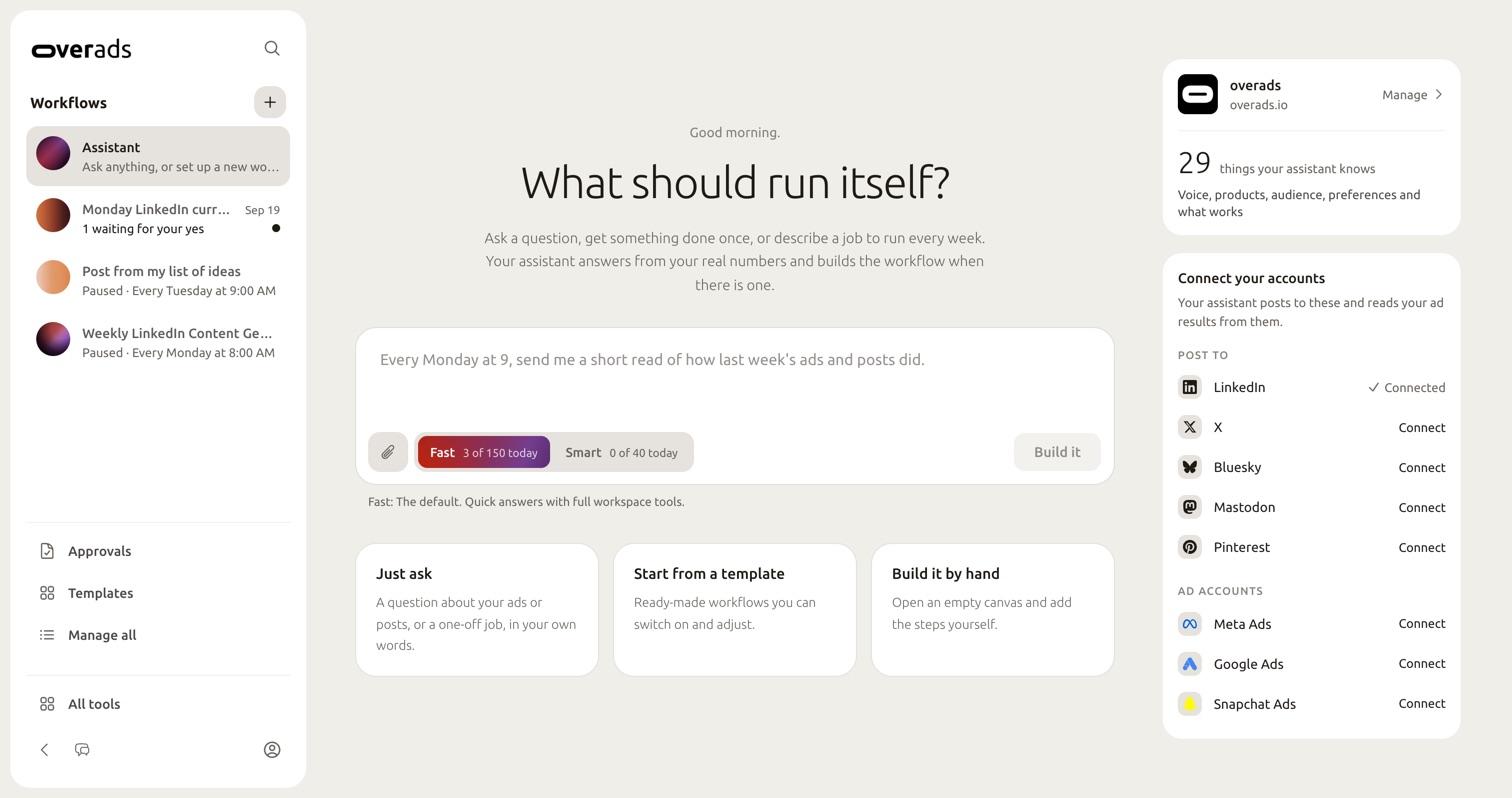
overads sends ad alerts through workflows. This section describes them from the overads code as it stood on November 23, 2026, and from the public workflow templates.
A workflow can start with the step named When an ad number crosses a line. overads checks that step every 15 minutes against the ad figures that have synced. It reads active Meta campaigns or ad sets. The number can be spend, cost per acquisition, return on ad spend, click rate, CPM, CPC, clicks, impressions or conversions, over a window of 1 to 30 days. A workflow starts at most once a day for the same campaign or ad set, so one bad day does not send a message every 15 minutes.
Four ready-made templates use it or sit beside it.
- Overspend guard: when a Meta campaign spends more than your line in one day, the assistant reads its ad sets and sends the team two sentences on where the money went. Nothing is paused or edited.
- ROAS drop alert: when a Meta campaign's return stays under your line for three days, it sends two sentences on which ad set pulled it down. Nothing is paused or edited.
- CPA guard: when a campaign's cost per acquisition runs past your line for three days, it stages a pause for a person to approve and tells the team why.
- Weekday ads brief: every weekday morning it compares the last seven days of the synced ad accounts with the seven before and sends a five-line brief. It reads only.
A workflow's message goes out by email, and to Slack, Discord or Microsoft Teams where the workspace has connected one under Settings, Notifications. A workspace can switch those messages off there. Separately, while that alert is switched on, overads sends a daily email when the workspace's total ad spend for the previous day moved sharply against the days before it. The Ad accounts page shows month-to-date spend against a monthly budget you set, as a straight-line projection.
Where a workflow proposes a change, a person decides. Meta and Google ad changes run after you approve them; X and Snapchat connect read-only, so overads proposes and a person applies. On Meta that covers pausing and resuming campaigns, ad sets and ads, budget changes, launching ads and audiences, and automation rules; on Google, pausing and resuming a campaign and changing its daily budget. Each change is confirmed by a person first. How approvals work inside a workflow is in the workflows guide.
Where overads fits
overads fits a team that wants an alert to arrive with an explanation, and wants any change that follows to wait for a person. It is one more route beside the platforms' own rules, not a replacement for them.
What overads does not do, read from the code on November 23, 2026:
- The step that watches a number reads Meta campaigns and ad sets only. It does not watch Google, X or Snapchat campaigns.
- It does not see spend as it happens. It checks every 15 minutes against figures that have already synced, so it can be later than a rule inside the ad platform.
- It does not send an alert when month-to-date pacing drifts from the monthly budget. Pacing is shown on the Ad accounts page and has to be looked at.
- It does not send these alerts by SMS or phone call.
- It does not create or edit a rule inside Google Ads from a workflow.
When another route fits better: a team on one platform with one fixed line is well served by that platform's own rule, which sits next to the data. A team that needs spend stopped within minutes should rely on budgets and, on Meta, a trigger-based rule through the API. A Google account that needs to hear about an unusual day should run Google's anomaly script hourly. For agencies reporting on several clients, the Meta ads for agencies page and the Google Ads for agencies page describe what overads reads from each.
Frequently asked questions
Can a Google Ads automated rule be set on a Performance Max campaign?
Yes, at the asset group level. Google's setup page describes asset group rules, created from the Asset groups page or from Rules in the Tools menu, with a name, an action, conditions, a frequency and email results.
Who can receive a Meta automated rule's notification?
Meta's page on creating a rule says a subscriber can be added to a rule. The person must have admin permissions on the ad account and full control of the business portfolio that owns it.
What happens when two Google Ads rules change the same thing at the same time?
Google's tips page says rules cannot prioritise themselves, so both run and both make their changes, which can cause errors. It suggests scheduling them at different times. The rule with the earliest time runs first.
Sources
- About automated rules. Google Ads Help. Accessed Nov 23, 2026.
- Set up automated rules. Google Ads Help. Accessed Nov 23, 2026.
- Common ways to use automated rules. Google Ads Help. Accessed Nov 23, 2026.
- Tips for using automated rules. Google Ads Help. Accessed Nov 23, 2026.
- Manage your automated rules. Google Ads Help. Accessed Nov 23, 2026.
- Google Ads scripts: product overview (last updated November 16, 2026). Google for Developers. Accessed Nov 23, 2026.
- Google Ads scripts: limits (last updated November 16, 2026). Google for Developers. Accessed Nov 23, 2026.
- Account Anomaly Detector, single account (last updated November 16, 2026). Google for Developers. Accessed Nov 23, 2026.
- About automated rules in Meta Ads Manager. Meta Business Help Centre. Accessed Nov 23, 2026.
- About actions for automated rules in Meta Ads Manager. Meta Business Help Centre. Accessed Nov 23, 2026.
- Limits to automated rules in Meta Ads Manager. Meta Business Help Centre. Accessed Nov 23, 2026.
- About conditions for automated rules in Meta Ads Manager. Meta Business Help Centre. Accessed Nov 23, 2026.
- Available conditions for automated rules in Meta Ads Manager. Meta Business Help Centre. Accessed Nov 23, 2026.
- About rules with cost-related conditions in Meta Ads Manager. Meta Business Help Centre. Accessed Nov 23, 2026.
- Create an automated rule in Meta Ads Manager. Meta Business Help Centre. Accessed Nov 23, 2026.
- Set notifications if you spend a certain percentage of your lifetime budget in Meta Ads Manager. Meta Business Help Centre. Accessed Nov 23, 2026.
- Best practices for automated rules in Meta Ads Manager. Meta Business Help Centre. Accessed Nov 23, 2026.
- Manage automated rules in Meta Ads Manager. Meta Business Help Centre. Accessed Nov 23, 2026.
- Ad Rules Engine (updated June 26, 2026). Meta for Developers. Accessed Nov 23, 2026.
Drafted with AI assistance, then checked against primary sources and the product itself by the overads team.
Keep reading
Paid media · 13 min read
ads_management vs ads_read: why many ad tools can read your campaigns but not change them
ads_read lets a tool report on Meta ad accounts; ads_management lets it change them. One app declined on July 28 and approved on November 2, 2026, what changed between, what the permission lets a tool do, and how to check your connection.
Paid media · 9 min read
Real-time vs nightly ad sync: how fresh does ad data need to be?
Meta refreshes insights every 15 minutes and Google most metrics hourly, yet conversion figures keep changing for days or weeks. What each platform documents, when minutes matter, and what to ask any reporting tool about its sync.
Workflows · 15 min read
Human in the loop AI for marketing: let the agent draft, keep a person on send
Human in the loop AI drafts and proposes; a person approves before anything goes out. Which marketing tasks are safe to automate, the guardrails that stop a workflow running away, and how Zapier, n8n and overads compare.
Hear about a spend or CPA problem without watching the dashboard
Connect a Meta ad account, set your line on a workflow, and the team gets two plain sentences when a campaign crosses it. Any change waits for a person's approval.
Get started