

Instagram grid planner: how to plan your profile grid before you post
A profile grid moves one place with every post, so the order has to be planned in rows of three. The tile shape measured at 3:4, what Instagram publishes about pins, reordering and Reel covers, and the bottom-up posting order.
TL;DR
- An Instagram grid planner is a tool that lays out upcoming posts three across, in profile order, so you can see the grid before anything is published. It matters because every new post pushes each existing tile one place along.
- Instagram's Help Centre gives no ratio for a grid tile. Measured on instagram.com on November 19, 2026, each tile on the @instagram profile was 3 wide by 4 tall.
- A profile shows the newest post first. To get the layout you planned, post the bottom-right tile of the plan first and the top-left tile last.
- Instagram lets you pin up to three posts to the top of the profile. Its Reorder grid option moves posts after they are published, on the iPhone, Android and iPad apps but not on a computer.
- overads has a Feed planner under Publish: it arranges uploaded pictures by colour or by hand and shows a connected account's recent posts under the plan. Its tiles are square and it takes pictures only.
What an Instagram grid planner does
An Instagram grid planner is a tool that shows upcoming posts in the three-column layout of an Instagram profile before any of them is published. You place pictures and Reel covers in the order they will appear, look at the rows as a visitor would, and change the order until neighbouring tiles work together.
A grid planner exists because the grid moves. An Instagram profile shows the newest post in the top-left tile, so each new post pushes every older tile one place to the right, and the tile at the end of a row drops to the start of the next. A column of matching tiles therefore lines up again only after three more posts. Planning in rows of three is the way to keep a pattern through that movement.
A grid planner is not a scheduler. Planning decides the order, and a scheduler or the Instagram app does the posting. Some tools do both; the steps for the posting half are in how to schedule Instagram posts, Reels and Stories.
The Instagram grid's shape: 3:4 tiles, measured
The Instagram profile grid shows three tiles per row, and each tile measured 3 wide by 4 tall on instagram.com on November 19, 2026. Instagram's Help Centre does not state a tile ratio: searches there for the profile grid, for adjusting a preview and for a 3:4 thumbnail returned no page that gives one. So the shape here is a measurement, with its method.
The method: the public profile of @instagram on instagram.com was opened in a desktop browser without signing in. Each of the 12 tiles the page rendered was sized by a bottom padding of 133.333% of its width, which makes a tile 3 units wide and 4 units tall. The Instagram apps for iPhone and Android were not measured, so treat 3:4 as the web profile's shape on that date.
The numbers Instagram and Meta do publish describe the picture, not the tile, and they do not all match a 3:4 tile.
| What | Published figure | Where it is stated |
|---|---|---|
| Profile grid tile | No figure published. Measured at 3:4 on instagram.com | This post's measurement |
| Photo posted in the app | Kept between 1.91:1 and 3:4, up to 1,080 pixels wide | Instagram Help Centre, image resolution |
| Picture published through the API | Must be between 4:5 and 1.91:1 | Meta, IG User Media reference |
| Reel cover, Help Centre | 420 x 654 pixels recommended, a 1:1.55 ratio | Instagram Help Centre, Reel sizes |
| Reel cover, API | 9:16 recommended. A Reel shared to the feed uses the middle 1:1 square | Meta, IG User Media reference |
| Pinned posts | Up to three, at the top of the profile | Instagram Help Centre, pinning |
Two consequences follow from that table. First, Instagram's image resolution page says the app keeps a photo as tall as 3:4, which at 1,080 pixels wide is 1,440 pixels high and matches the measured tile. Meta's IG User Media reference stops at 4:5 for pictures published through the API, which is 1,080 x 1,350. A scheduled picture is therefore slightly wider than the tile: filling a 3:4 tile from a 4:5 picture uses 1,012.5 of its 1,080 pixels of width, about 94%. That figure is arithmetic, not a number Instagram publishes, and Instagram does not document how it fits a picture into a tile.
Second, a square picture loses the most. Filling a 3:4 tile from a 1,080 x 1,080 square would use 810 pixels of its width, or 75%, by the same arithmetic. The practical rule for any shape is to keep faces, products and text inside the centre of the picture. The per-network export sizes are in the social media image size guide.
How to plan an Instagram grid, step by step
Planning an Instagram grid means choosing the order of the next few rows, checking them against what is already published, and then posting in reverse. The steps below work in any planner, or with pictures laid out in a document.
- Collect the next three or four rows. That is nine to twelve pictures or Reel covers. Whole rows matter because the grid only returns to the same columns every three posts.
- Crop for the tile. Keep the subject and any text inside the centre of each picture, because a tile shows less width than a 4:5 or square picture has.
- Lay them out three across, newest first. The top-left tile of the plan is the last post you will publish, and the bottom-right tile is the first.
- Check the seam. Put the plan above the posts already on the profile. The bottom row of the plan sits directly on top of the current first row, and that join is where a clash of colour or subject shows.
- Schedule from the bottom up. Give the bottom-right tile the earliest time and work left and upward. Finish a whole row before the next one, or the columns sit one place off until you do.
- Adjust in the Instagram app. After publishing, pinning and Reorder grid can fix what the plan missed. Both are covered in the next section.
Three common ways to choose the order are by colour, by series and by content type. By colour, neighbouring tiles share a palette or move gradually from one to the next. By series, a row of three belongs together, such as three views of one product. By content type, each column or each row holds one kind of post, such as a quote, a product and a person. These are planning habits, not rules from Instagram, and Instagram publishes no guidance that one of them changes how a profile is ranked or shown.
Pinning and reordering posts on Instagram
Instagram has two controls that change the grid after posts are published: pinning, and Reorder grid. Both are in the Instagram app, and neither is a planning tool, because each works only on posts that are already live.
Instagram's help page on pinning says you can pin up to three of your posts to the top of your profile. The steps are to open the post, tap Options, and tap Pin to main grid. An unpinned post returns to its original spot. Three pinned posts fill the first row, which makes that row stay put while the rows under it move with each new post.
Instagram's help page on reordering the profile grid describes the second control. On your profile you tap and hold a piece of content, tap Reorder grid, then drag posts into the order you want, and the change is saved automatically. The page says the feature is not available on computers and lists help for the iPhone, Android and iPad apps. It also says reordering is not available on the dedicated reels, reposts or tagged grids.
Reorder grid lowers the cost of a planning mistake, since a post no longer has to be deleted and published again to move it. It does not replace a plan. A visitor who opens the profile between two posts sees whatever order exists at that moment, and reordering is done by hand on a phone after each post.
Planning Reel covers for the grid
A Reel appears on the Instagram profile grid as its cover, so the cover is what a grid plan has to place. Instagram and Meta give two different recommendations for it, and neither is 3:4.
Instagram's help page on Reel sizes recommends a cover of 420 x 654 pixels, a 1:1.55 ratio, and says that at the moment a cover cannot be edited after it is uploaded. Meta's IG User Media reference recommends 9:16 for a cover sent through the API, in JPEG and at most 8 MB. The same reference says that when a Reel is shared to the feed, Meta crops the cover and uses the middle 1:1 square as the feed post's cover. It does not mention the profile grid.
The safe design is the same as for pictures: put the title and the subject in the middle of a 9:16 cover. On a 1,080 x 1,920 cover, a centred 3:4 area is 1,080 x 1,440, which leaves 240 pixels at the top and 240 at the bottom outside it. A centred square is 1,080 x 1,080. Those areas are arithmetic on the published sizes. Whether the grid takes the exact centre of a cover is not documented, so check a published Reel on the profile before building a series of covers on one template.
Planning a grid in overads' Feed planner
overads has a Feed planner under Publish that lays out upcoming pictures as a three-column Instagram-style grid. This section describes it from the overads code as it stood on November 19, 2026.
- Adding pictures. You drop in a batch of JPEG, PNG, GIF or WEBP files. Each becomes a tile in the plan, and a plan holds up to 120 tiles.
- Arranging. The planner reads each picture's dominant colour, brightness and saturation in the browser before upload. An Organize button then orders the tiles in one of four ways: Colour flow, Light to dark, Tonal blocks, or Balanced, which keeps similar tiles from touching. Any tile can also be dragged to a new place.
- Posting order. The plan reads newest first, like a profile. The planner says so under the grid: post from the bottom of the plan upward to end up with the layout on screen.
- The seam. With an Instagram account connected, a Show my posts button loads that account's recent posts under the plan. If Meta has not granted overads permission to read them, the planner says so and does not show an empty grid.
- Handing off. Each tile has a button that opens the Publish composer with that picture attached, where the caption and time are set. Instagram itself is live in overads Publish (Instagram in overads), and a workspace can hold scheduled posts for a person's approval when an owner or admin switches that rule on (scheduling and approvals).
Where overads fits
overads fits a team that plans an Instagram grid as part of a wider posting schedule and wants the plan next to the composer. overads Publish is live on Instagram, Facebook, LinkedIn, X, Bluesky, Mastodon and Pinterest, so the picture planned for the grid can go to the other channels from the same post. The social media scheduler page covers that side, and the media guide covers what happens to a file before it is sent.
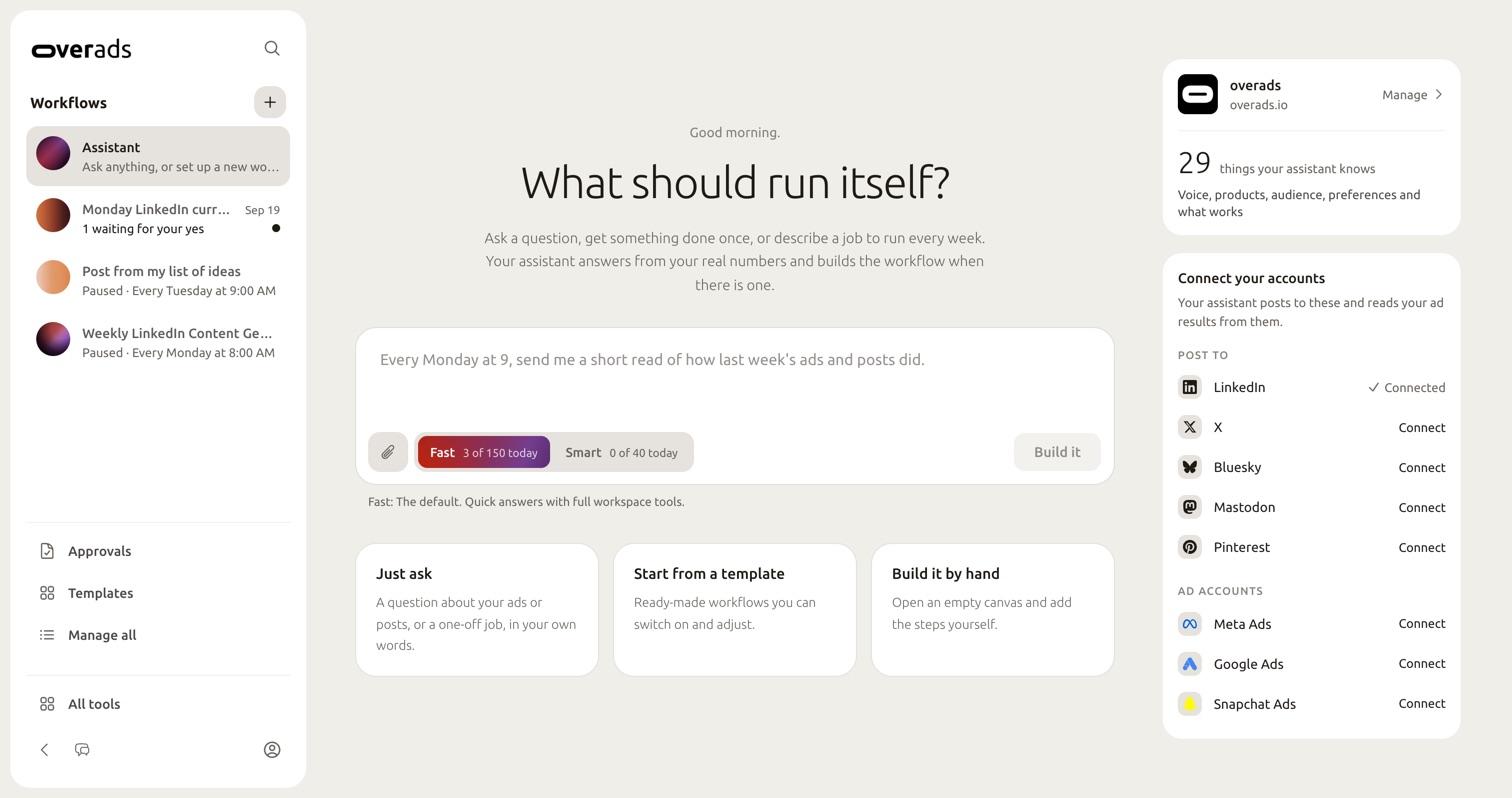
What the overads Feed planner does not do, read from the code on November 19, 2026:
- Its tiles are square, while the Instagram web profile measured 3:4. The order and the colour flow carry over; the exact crop of each tile does not.
- It takes pictures only. A Reel is not planned as a video, so a Reel's place in the grid has to be held by its cover picture.
- It does not schedule the plan. Each tile is handed to the composer one at a time, and the times are yours to set in bottom-up order.
- A workspace has one plan, not one per Instagram account.
- It does not pin or reorder posts on a published profile. Those are done in the Instagram app.
When another route fits better: a creator with one account who mostly wants to fix the order of posts already published needs only Instagram's own Reorder grid and pinning. An account that posts mainly Reels is better served by a planner that previews video covers at the tile's 3:4 shape, which the overads Feed planner does not.
Frequently asked questions
Does reordering the grid change when a post was published?
Instagram's help page on reordering does not say. It describes the steps, says changes are saved automatically, and says the option is not offered on the dedicated reels, reposts or tagged grids.
Where does an unpinned post go?
Instagram's Help Centre says that when you unpin a post, it returns to its original spot in your profile grid.
Can a third-party tool rearrange or pin posts on a published Instagram profile?
Instagram's help pages describe pinning and reordering as steps in the Instagram app, and the reorder page says the feature is not available on computers. overads does neither: it publishes posts, and the order on the profile is managed in Instagram.
Can a Reel cover be changed after posting?
Instagram's Help Centre page on Reel sizes says that at the moment you cannot edit a cover photo after uploading it. Choose the cover before the Reel is scheduled.
Sources
- How to reorder content on your Instagram profile grid. Instagram Help Centre. Accessed Nov 19, 2026.
- Pin a post to the top of your profile on Instagram. Instagram Help Centre. Accessed Nov 19, 2026.
- Image resolution of photos you share on Instagram. Instagram Help Centre. Accessed Nov 19, 2026.
- Reel size and aspect ratios on Instagram. Instagram Help Centre. Accessed Nov 19, 2026.
- IG User Media reference. Meta for Developers, Instagram Platform. Accessed Nov 19, 2026.
- Instagram (@instagram), public profile used for the tile measurement. Instagram. Accessed Nov 19, 2026.
- Instagram. overads docs. Accessed Nov 19, 2026.
- Scheduling and approvals. overads docs. Accessed Nov 19, 2026.
Drafted with AI assistance, then checked against primary sources and the product itself by the overads team.
Keep reading
Social publishing · 10 min read
How to schedule Instagram posts, Reels and Stories: the Instagram app, Meta Business Suite and the API compared
Three places can schedule an Instagram post, and each takes different formats. The Instagram app, Meta Business Suite and Meta's Content Publishing API side by side, with the daily caps, file rules and what none of them can schedule.
Social publishing · 8 min read
Social media image sizes in 2026: Instagram post size, LinkedIn, X, Pinterest and more
Image sizes, ratios and file caps for Instagram, Facebook, LinkedIn, X, Bluesky, Mastodon and Pinterest, read from each platform's own docs on November 12, 2026, with the gaps between what an app accepts and what its API accepts.
Social publishing · 8 min read
Can you connect Instagram without a Facebook Page? The three Instagram logins, explained
Meta now documents three ways for a tool to connect an Instagram account, and two of them need no Facebook Page. What each login asks for, what it can reach, and how to tell which one a tool uses, from Meta's docs read November 15, 2026.
Plan the grid, then schedule the posts
Lay out upcoming pictures in the Feed planner, hand each one to the composer, and let any post wait for a person's approval before it goes out.
Get started